Project Management
A Hive project represents a GraphQL API project running a GraphQL schema, created under an organization.
Within a Hive project, you can create targets (which are equivalent to runtime environments) and manage different schemas across different contextual runtimes.
Supported project types
Hive supports the following project types:
- Single Schema: a GraphQL project that has a single GraphQL schema developed as a standalone.
- Schema Stitching: a form of remote schema merging allowing developers to merge any GraphQL schema(s), under one or many gateways. You can use either direct Schema Stitching or GraphQL Mesh for this project type.
- Apollo Federation: a form of remote schema merging developed according to the Federation specification.
Create a new project
To create a new project, click on Create Project + button from your organization’s main page:
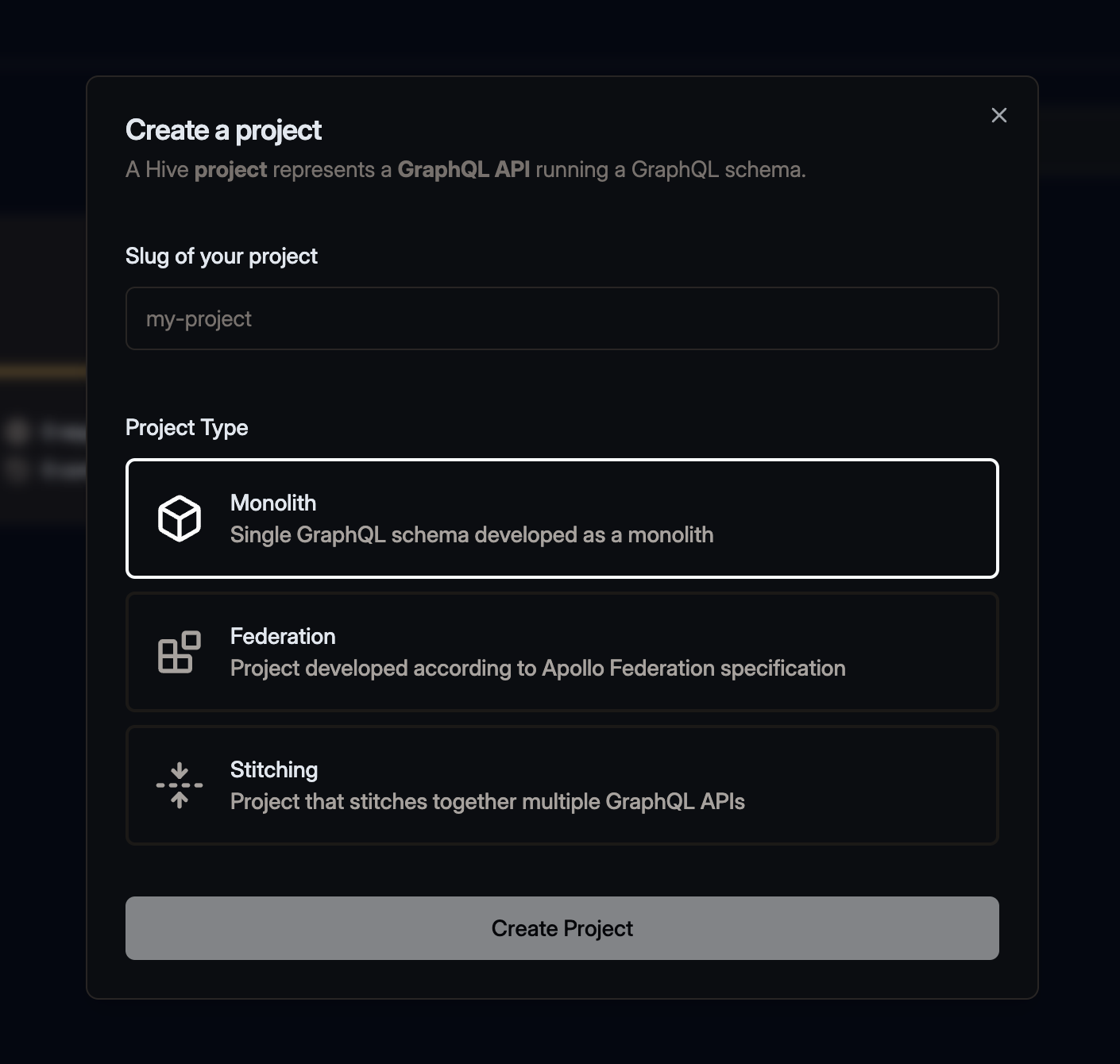
Choose a project type based on your project’s stack, and then enter the project slug.
Manage existing project
GitHub Repository
Once you have your Hive organization integrated with GitHub, no additional steps are needed. Please double check that the GitHub integration has access to all the GitHub repositories you plan to use with Hive.
Having a Project connected with your GitHub repositories gives you the following benefits:
- Publish Check Suite back to GitHub (when
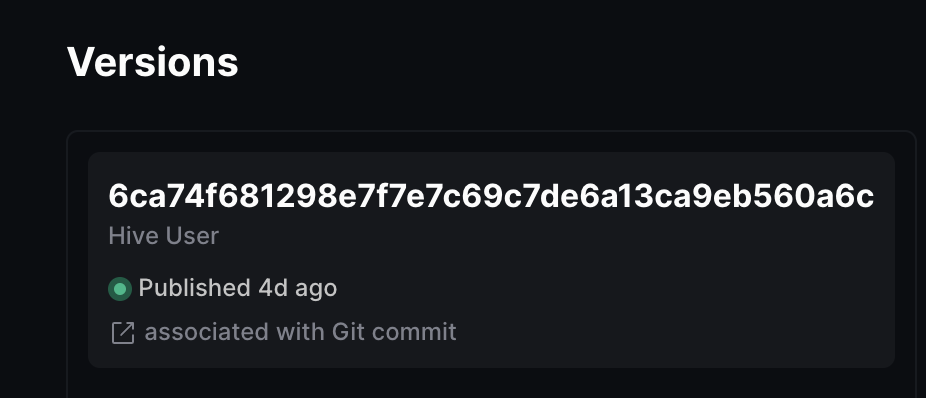
--githubflag is used for yourschema:publishandschema:checkcommands - you can learn move about this feature here). - Have direct connection between a schema version and a Git commit in your repository in Hive dashboard.
Change slug of a project
Slug is a unique (within an organization) identifier for your project.
Similarly to changing organization’s slug, you can change the slug of your organization by visiting Settings tab of your project:
Delete a project
As the owner of an organization, you have the option to delete a project, including all targets, settings and all data collected during your use of Hive.
To delete an project, go to the Settings tab of your project, and use the Delete Project section.
Alerts and Notifications
Hive allows you to configure alerts and notifications for your projects. To get started with alerts and notifications, go to the Settings tab of your project, and click on the Alerts tab.
To use alerts and notifications, you need to have at least one Alert Channel configured, and then you need to create an Alert that will be triggered when a specific condition is met.
Alert Channels
Alert Channels are a way to configure how you want to receive alerts and notifications from Hive.
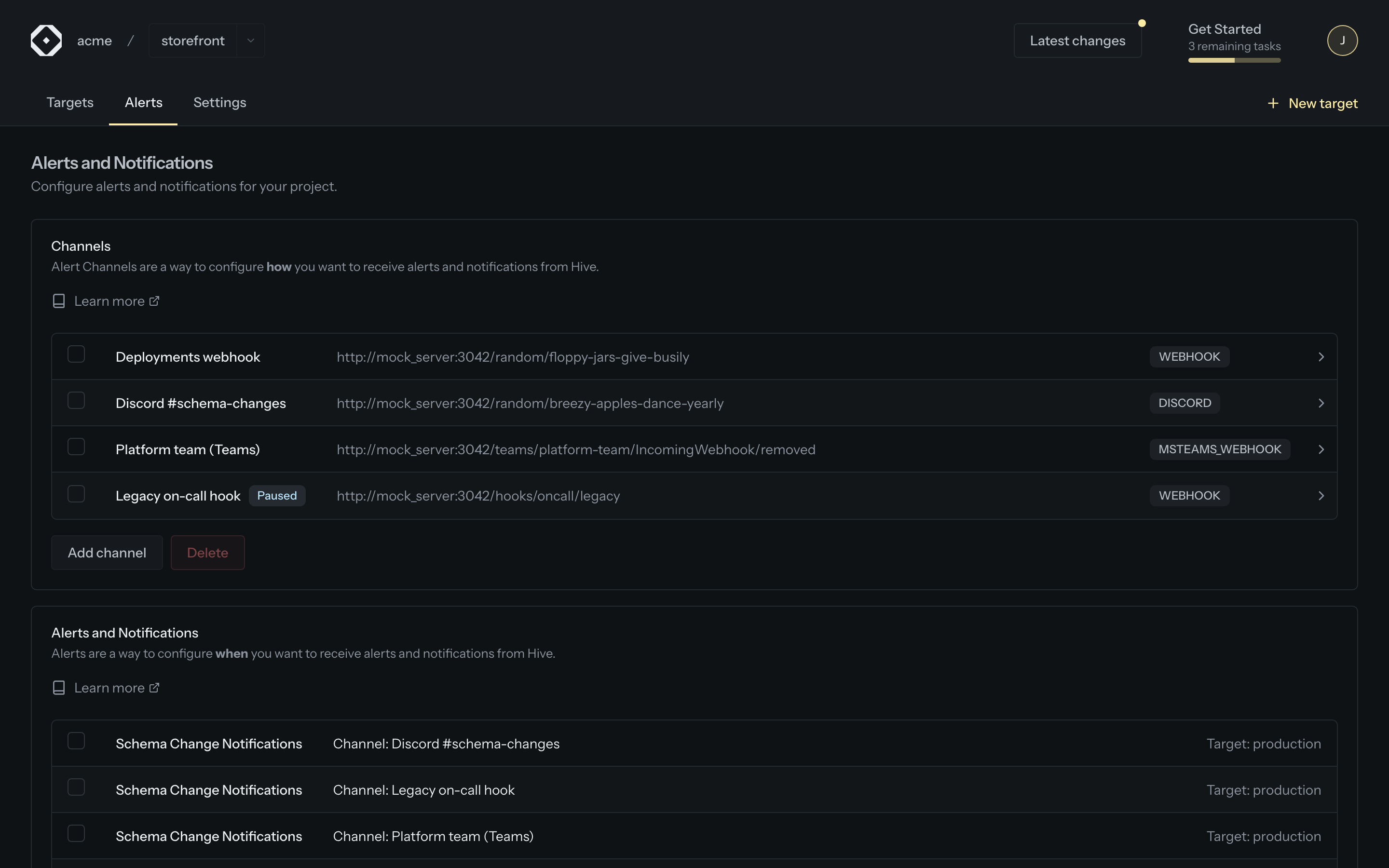
From the Alerts tab of your project, you can create and manage your Alert Channels.
Clicking a channel opens its page, with the channel’s delivery health and the most recent attempts to deliver notifications to it. See Delivery Tracking.
At the moment, Hive supports the following transports to ship your alerts and notifications:
Slack
Integrating your project with a Slack channel will allow you to receive alerts and notifications shipped directly to a Slack channel.
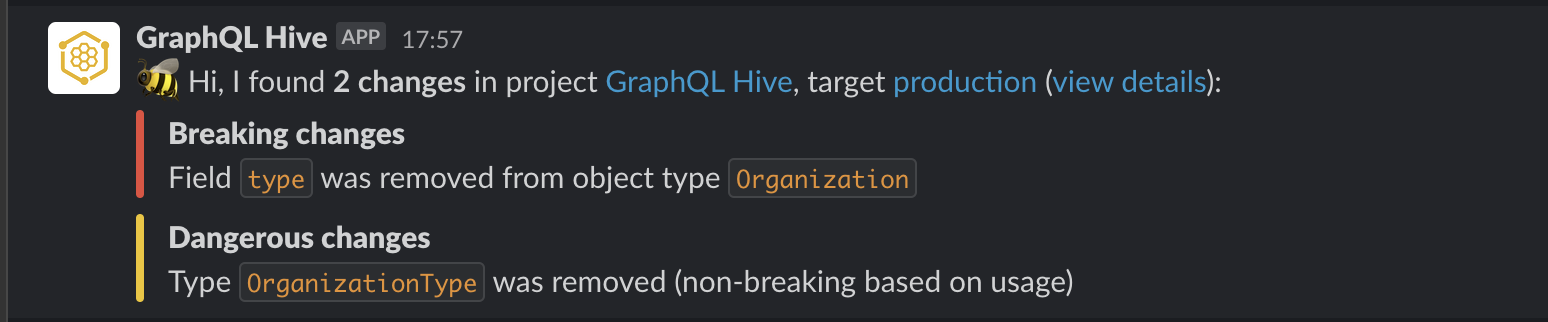
To integrate your project with a Slack channel, you first need to activate the Slack integration at the organization level.
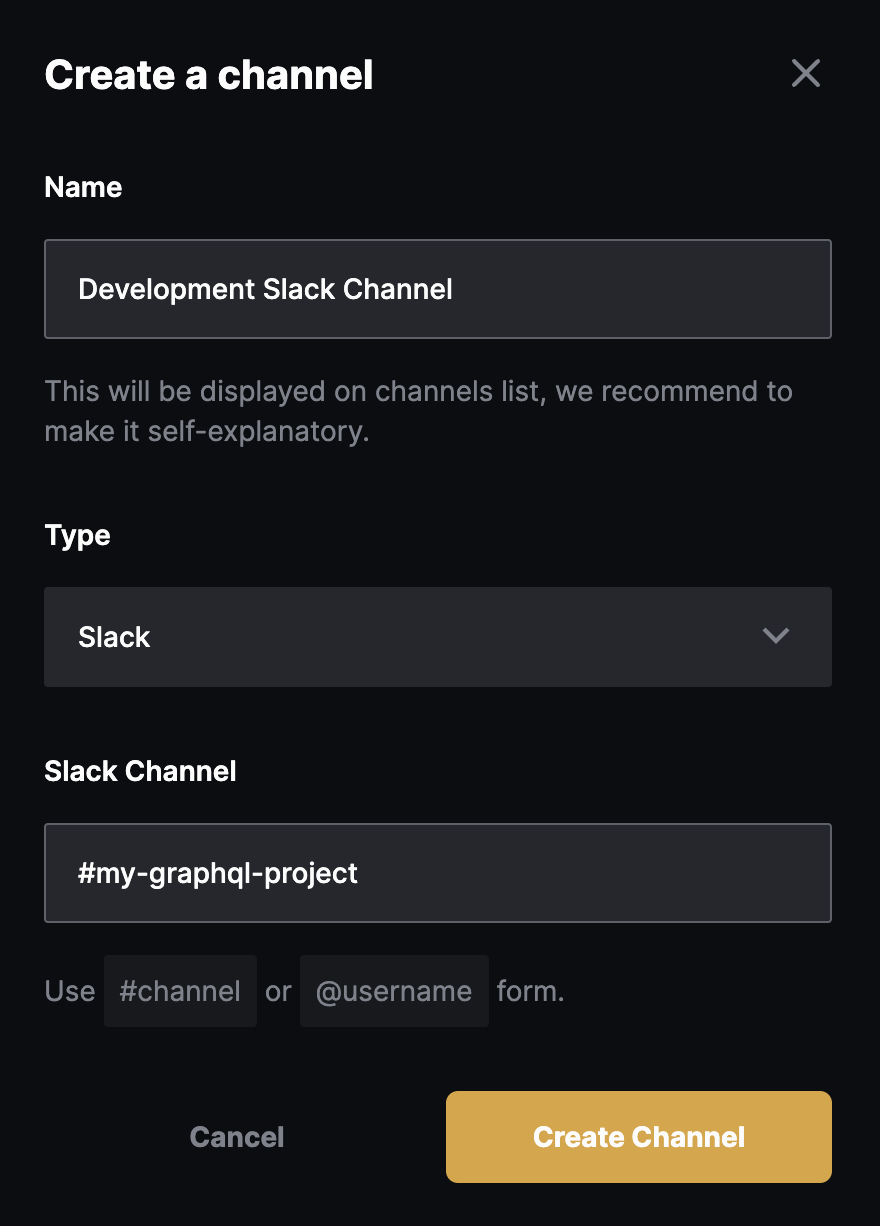
Once you have activated the Slack integration, you can configure a Slack channel to connect to your Hive project:
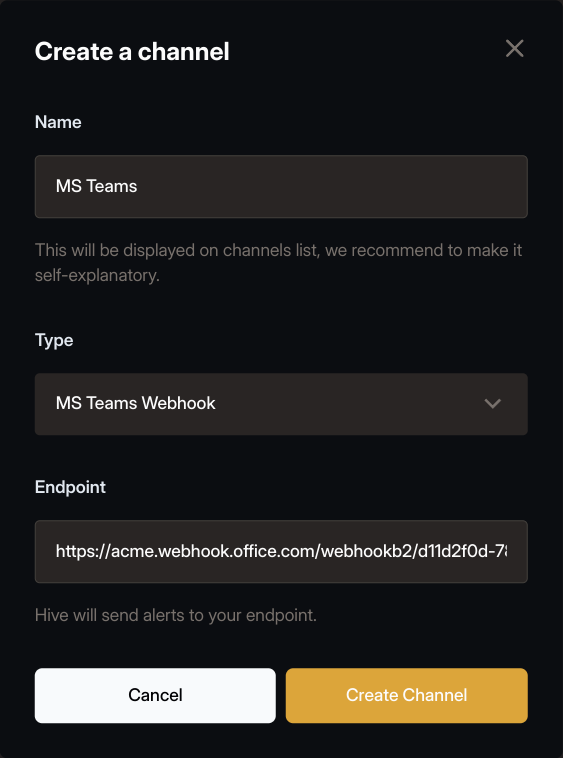
MS Teams Webhook
You set up Hive MS Teams webhook to receive alerts and notifications from Hive, when an alert or a
notification is triggered. All you need to do is to provide a valid HTTP URL, and Hive will dispatch
a POST request to that URL, with a JSON payload acceptable by MS Teams.
MS Teams Webhook JSON example
Typically the webhook URL looks like:
You can find more information on how to set up a webhook in MS Teams in the official documentation - Create Incoming Webhooks.
HTTP Webhook
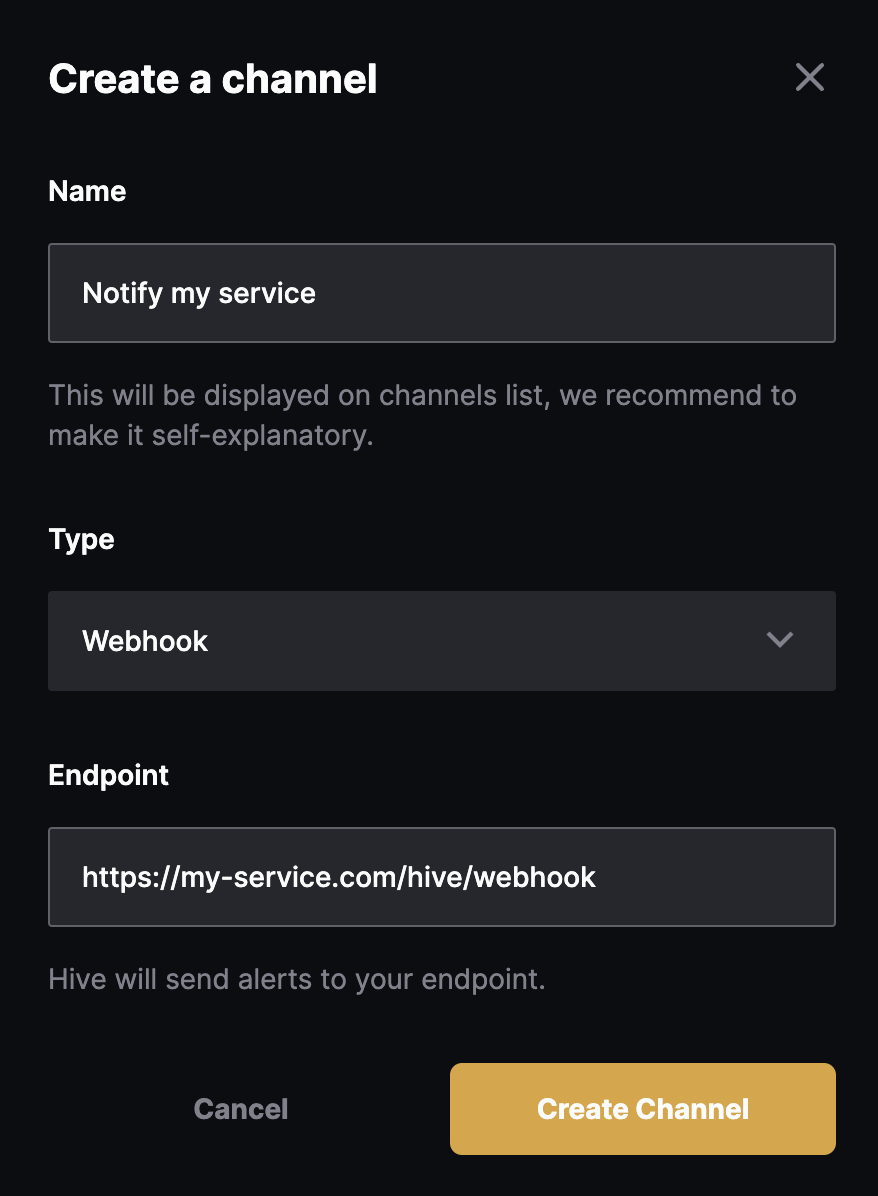
You can implement a custom HTTP webhook to receive alerts and notifications from Hive, when an alert or a notification is triggered.
All you need to do is to provide a valid HTTP URL, and Hive will dispatch a POST request to that
URL, with a JSON payload as body (with Content-Type: application/json header set) when an alert or
a notification is triggered.
Alerts and Notifications
Alerts are a way to configure when you want to receive alerts and notifications from Hive.
From the Alerts tab of your project, you can create and manage your Active Alerts and Notifications.
To create a new kind of alert, use the Create Alert button and choose the Alert type, Alert Channel and the target’s slug.
At the moment, Hive supports the following types of alerts and notifications (if you need a different kind of alert, you can collaborate with us on this GitHub issue):
Schema Changed Notification
An alert triggered when a fully valid and composable schema is published to a target.
This notification has the following payload when shipped over the HTTP webhook channel:
Delivery Tracking
Hive records every attempt it makes to deliver a notification to an alert channel and every email it sends on behalf of an organization, and shows the outcome in Hive Console: on a page for each alert channel, in the Email Deliveries section of the organization settings, and next to each pending invitation on the organization’s Members page.
Notifications and emails are delivered by a background worker after the request that caused them has returned, so there is no response in which Hive could report a failure. They also depend on configuration outside Hive that can be invalidated without anyone touching Hive: a revoked Slack token or an archived channel, a deleted Teams or Discord webhook, a decommissioned or timing-out endpoint, an address the mail provider refuses. Without tracking, these failures are silent.
Hive tracks the schema change notifications, metric alerts and channel confirmations sent to every channel type, and the invitation, ownership transfer, audit log export and usage limit emails sent for an organization. Message bodies, payloads, links and codes are never stored. Records are kept for 75 days, and the pages described below show the last 72 hours.
Alert channel deliveries
Open the Alerts page of a project and click a channel. Viewing a channel requires the
alert:modify permission, like managing one.
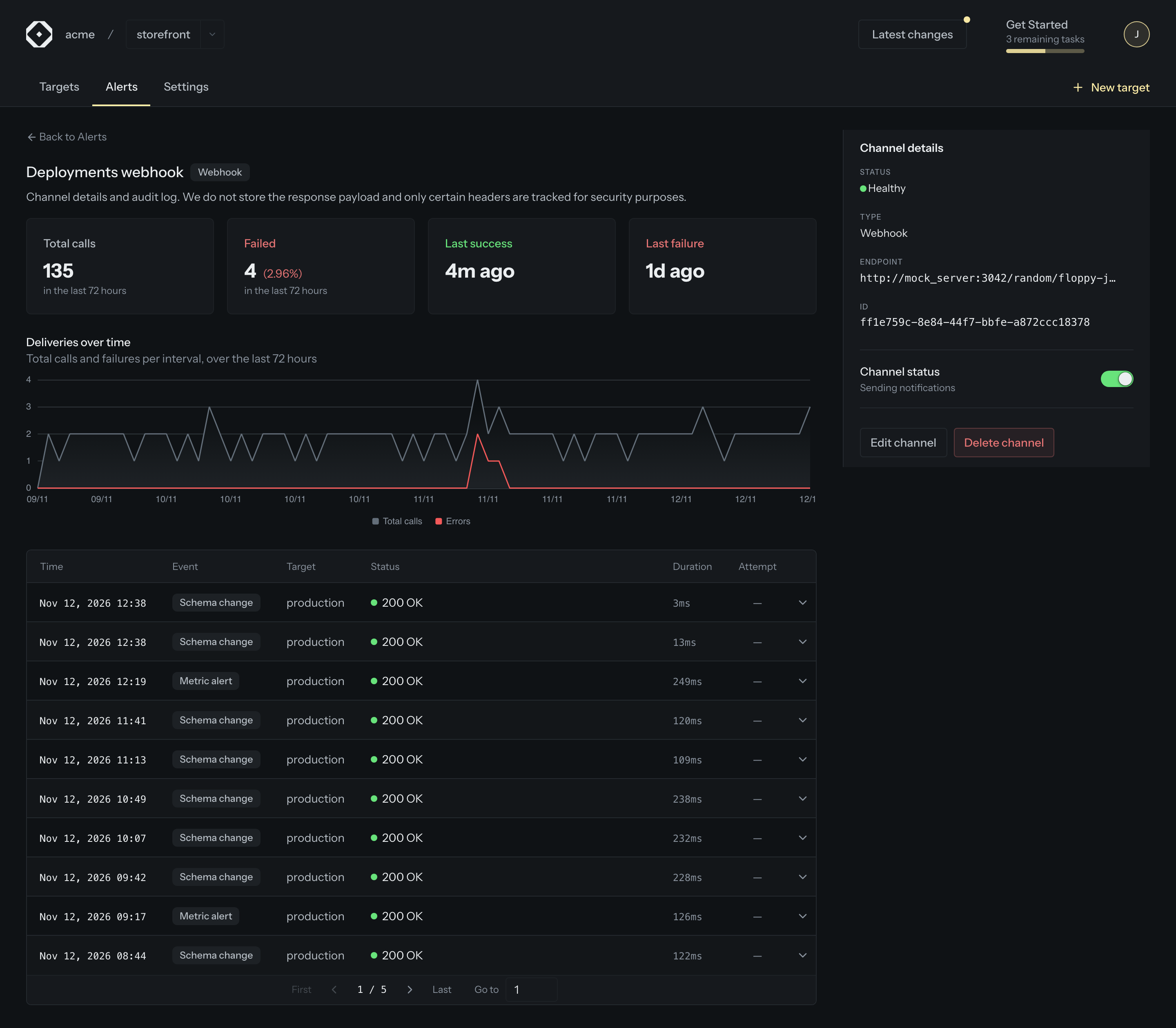
The page shows:
- Total calls, Failed (with the failure rate), Last success and Last failure for the last 72 hours.
- Deliveries over time: total calls and errors per interval.
- Channel details: the status, type, destination and id, the Channel status switch, and the Edit channel and Delete channel actions.
- The delivery log: recent attempts, with the time, event, target, status, duration and attempt number.
The Status column shows the destination’s own answer, such as 200 OK or 404 Not Found, or
Timed out when it did not answer in time.
Expand a row to see what Hive sent to identify the call: the headers and other important metadata associated with the delivery. The request and response payloads are not included, to prevent leaking sensitive information.
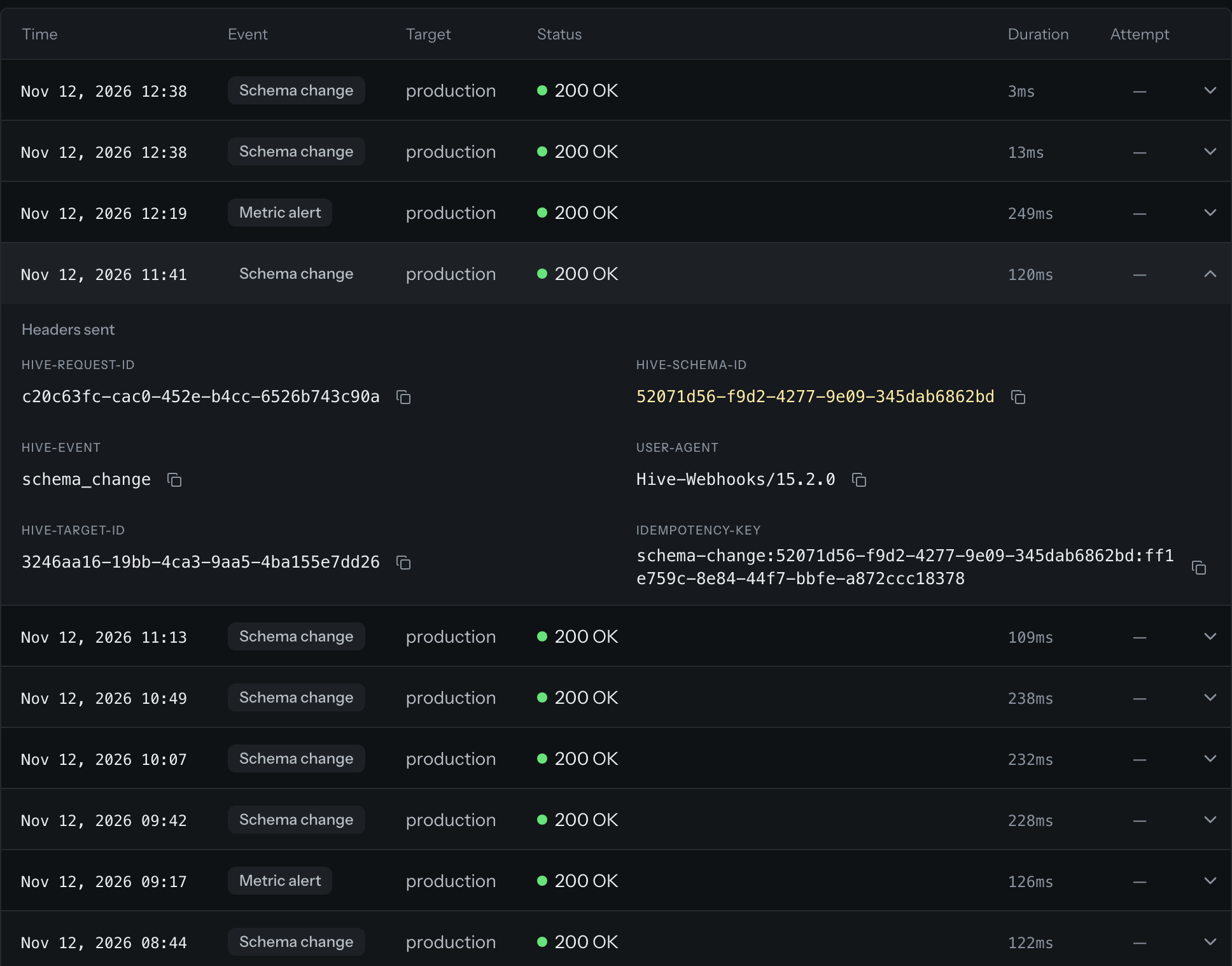
Failed deliveries are retried with increasing delays, and the delivery log shows the attempt number
of each row. Retried deliveries carry the same Idempotency-Key header, so make your webhook
handler idempotent (see Metric Alerts).
Channel health
The Status row of the channel details summarizes the recent attempts:
| Status | Meaning |
|---|---|
| Healthy | Attempts have been recorded, and the ten most recent ones are not all failures. |
| Failing | The ten most recent attempts all failed. The row shows since when. |
| No data | No attempt has been recorded since the channel was created or last enabled. |
| Paused | The channel is paused and receives no notifications. |
Health counts the attempts made since the channel was created or last enabled, so enabling a paused channel starts it afresh. The delivery log keeps every attempt regardless.
If a channel has been failing for 48 hours, Hive pauses it and no further notifications are sent to it. Fix the destination, or use Edit channel to rename the channel or point it at a new destination without recreating it (the type cannot change), then click Enable channel.
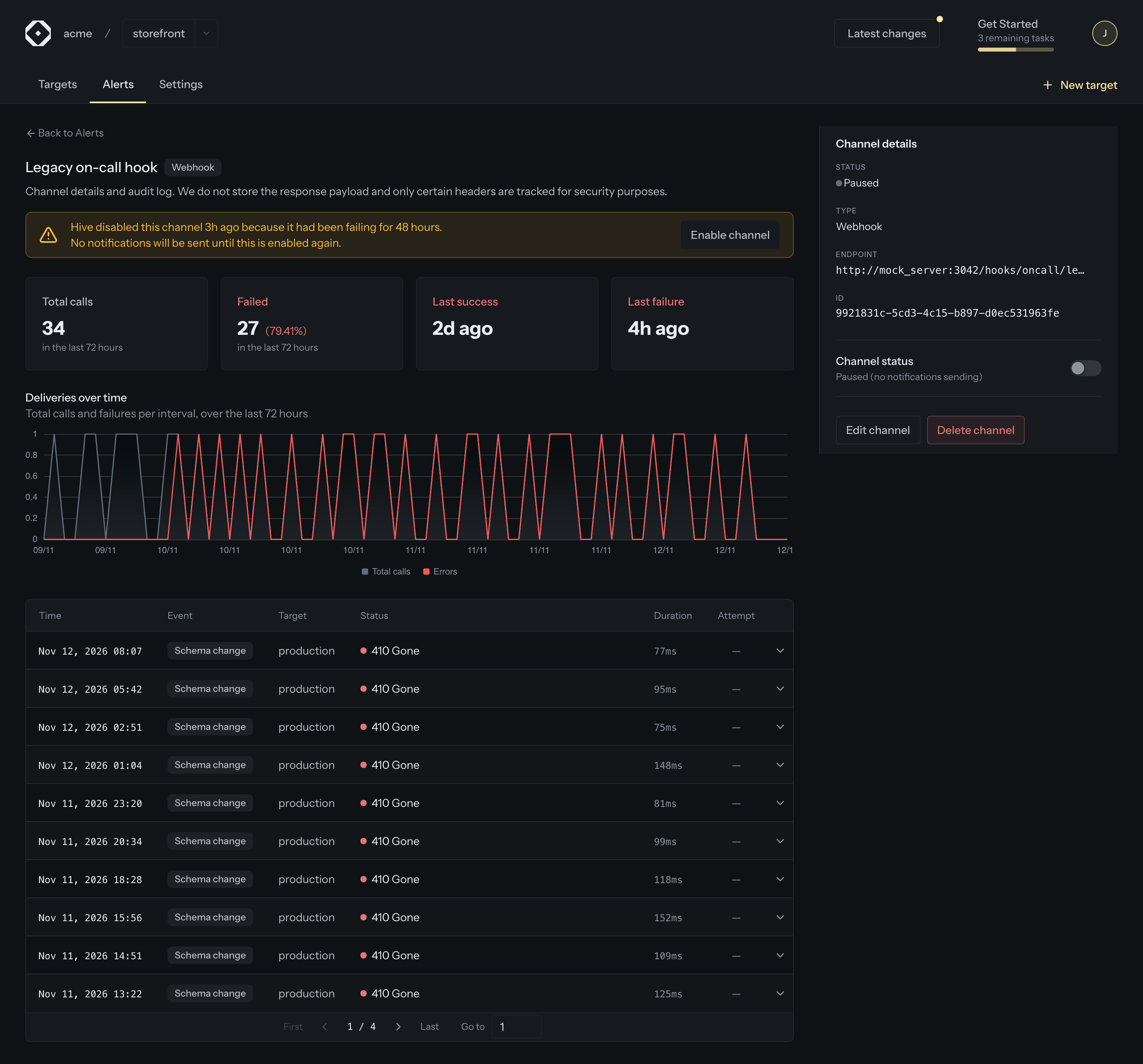
You can also pause a channel yourself by toggling Channel status in the channel details. Pausing keeps the channel’s alerts and metric alert rules in place, but stops these notifications from sending.
Email deliveries
Open the organization’s Settings and choose Email Deliveries.
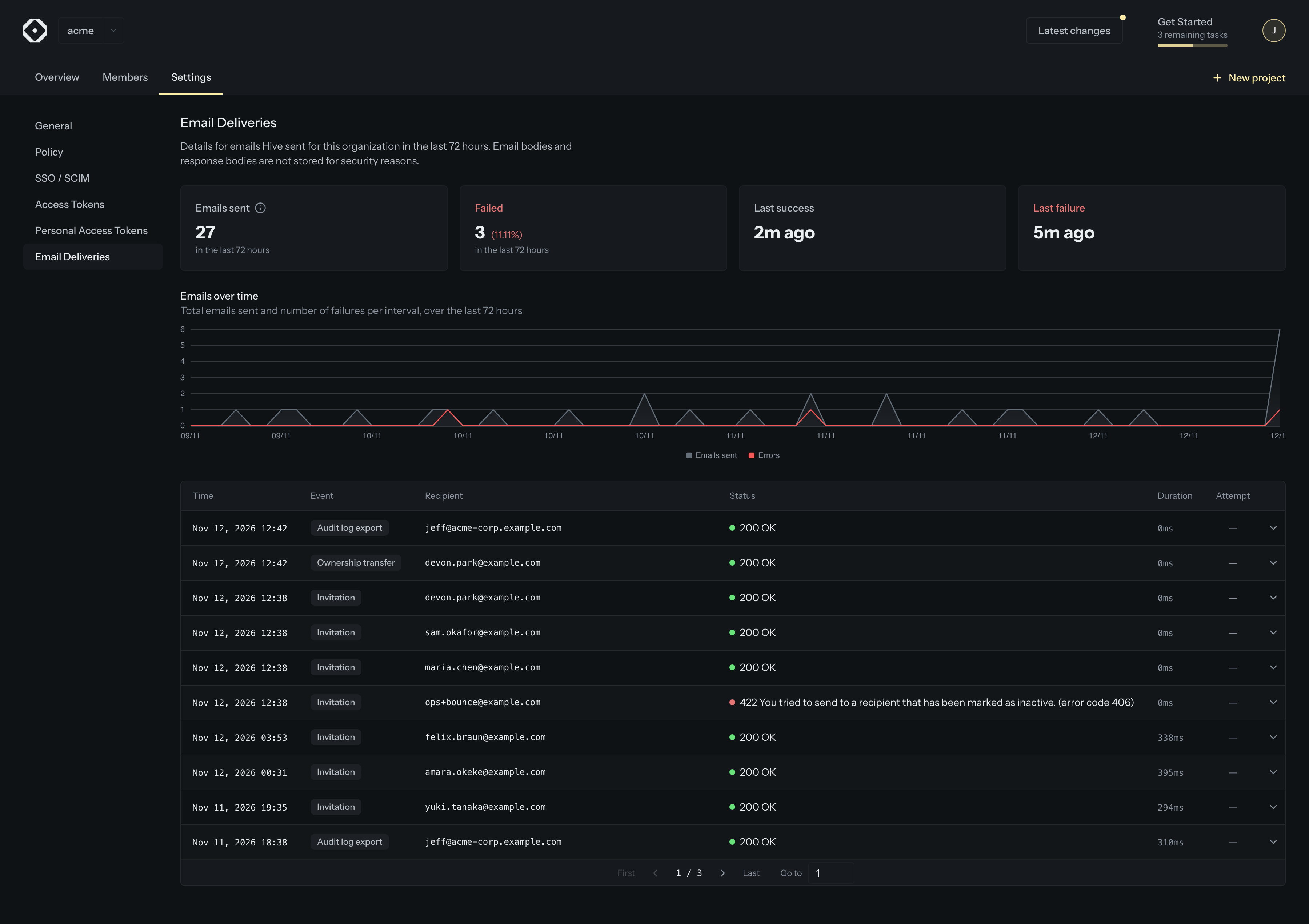
The section shows the emails Hive sent for the organization in the last 72 hours: how many the mail provider accepted or refused, when it last did either, Emails over time, and a log of each attempt with the recipient, the provider’s answer, the duration and the attempt number. Expanding an attempt shows the metadata recorded for it.
Each member sees the kinds of email of the features they may manage. When that leaves a kind out, the section says which kinds it shows.
| Who sees it | |
|---|---|
| Invitations | Members with member:modify |
| Audit log exports | Members with auditLog:export |
| Usage limit warning and exceeded notices | Members with billing:describe |
| Ownership transfers | The organization owner |